Inspectors
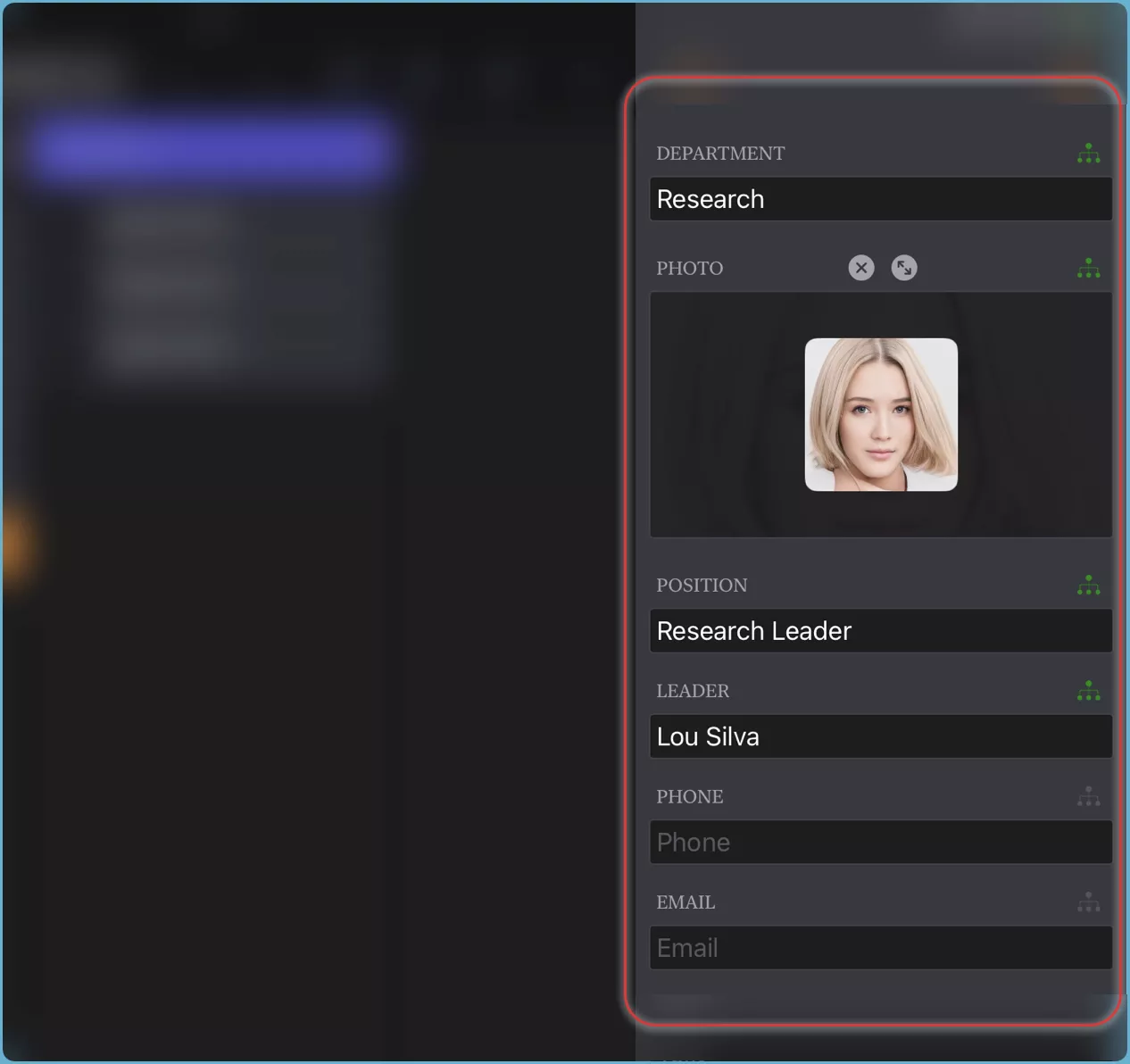
Streamlined Editing for Individual Nodes - Focus on a specific node and modify its details with ease using the Inspectors panel.
Edit Node Data
Here's how it works:
-
Select a Node:
Choose a node from the grid view, chart view, or column view.
-
Inspect Fields:
The Inspector displays all visible fields for the selected node.
-
Edit Values:
Browse and modify the values of each field directly within the Inspector.
The Inspectors offer a centralized and intuitive interface to manage individual node data, saving you time and effort.
Fields
- Name Field
- Photo Field
- One-Line Text Fields
- Numberic Fields
- Boolean Fields
- Date Fields
- Percentage Fields
- Map Location Fields
- URL Fields
- Muiltiline Text Fields
TIP
Display Styles
In addition to the fields' value of the selected node, the Inspectors also allow you to change the display styles of the selected node.
Choose Fields
You can customize the fields displayed in the inspectors. Tap the "Gear" button located in the top-right corner of the inspectors' toolbar, and choose the fields you want to use and customize.
- Visibility: Toggle to show or hide specific fields used in the chart.
- Title: Define the display title for each field.
- Order: Arrange the fields in your preferred display order.
- Additionally, there may be other properties specific to the type of fields you're working with.